Task Genius
Task Genius
WORKFLOW & ATUTOMATION
Quick Capture
Editor Quick Capture
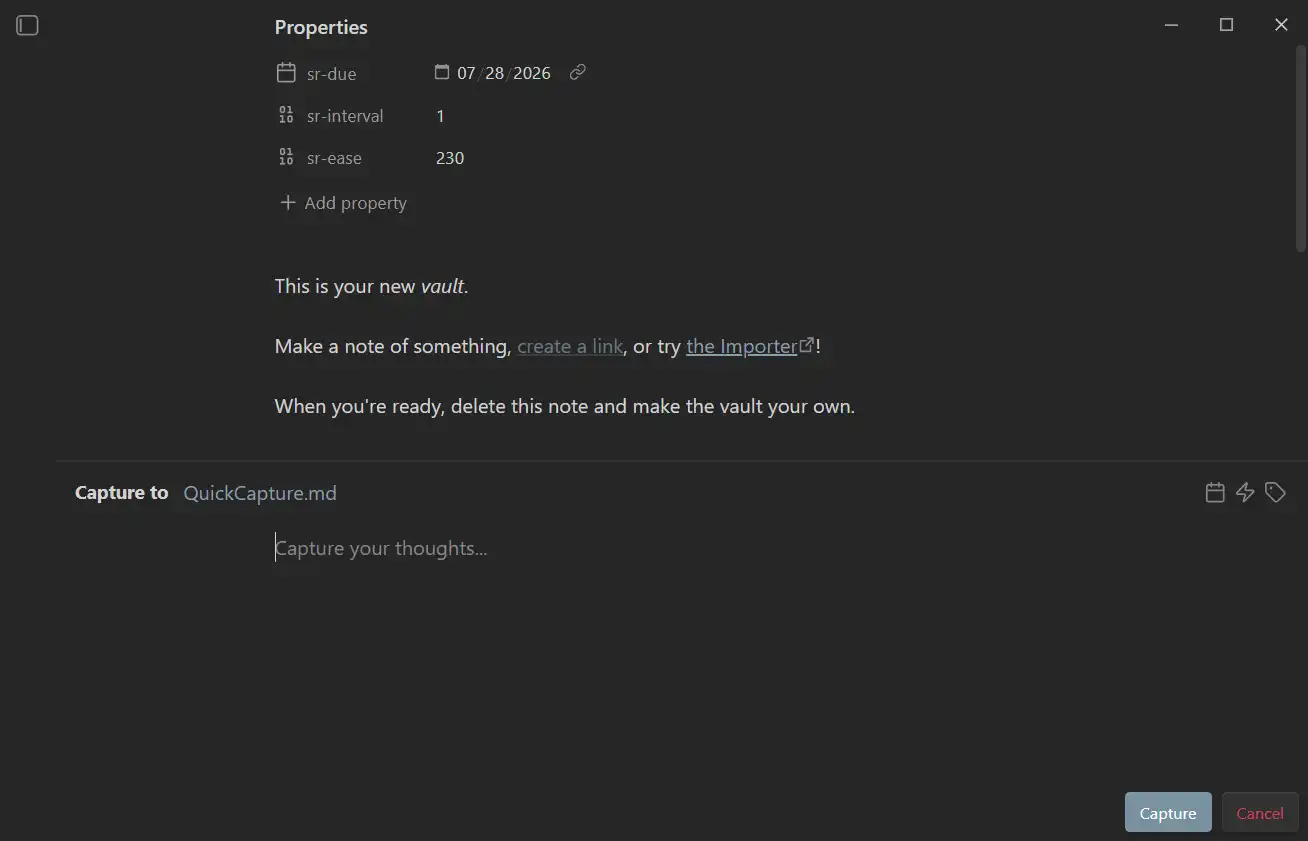
打开方式:Trigger the command -》Toggle quick capture panel in editor
在当前编辑页面的下方出现一个 capture panel
当前版本和说明不符的:
- Press
Enterto save to your configured capture file: 回车无法保存当前panel内容,需要点击右下角 Capture 按钮 - Default hot key
Alt + C: command未绑定到该hot key
其它:
- 点击 Capture to fileName.md 中的文档名称,可以指定输出文档
问题:
- command中还有一个
Toggle quick capture panel in editor (Globally)试了一下不知道和不带 Globally的区别,切换文档后 capture panel 会关闭。 - capture 按钮在右下角,挨着status bar,点击困难
Minimal Quick Capture
how to open?
Toggle the command -> Minimal Quick Capture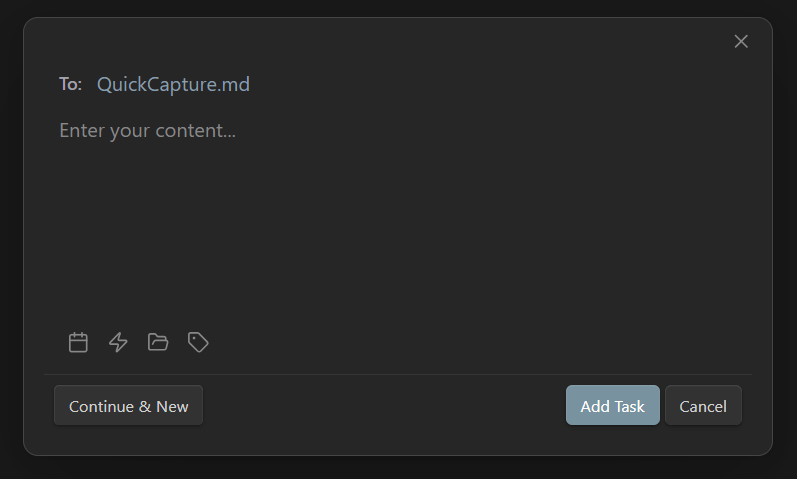
feature:
Press
Enteror clickAdd Taskto saveSingle-line input for fast entry: 因为 Enter 会直接保存当前capture,所以只能输入单行内容。拷贝的多行内容在capture panel中显示正常,但是每一行内容都会被当作是一个单独的task
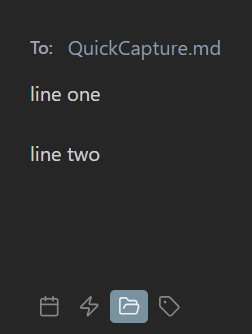
效果: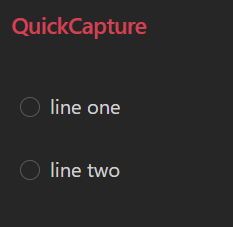
click
Continue & New:保存当前capture并且不会关闭 capture panel
Detail Capture
open: toggle the command -> Quick Capture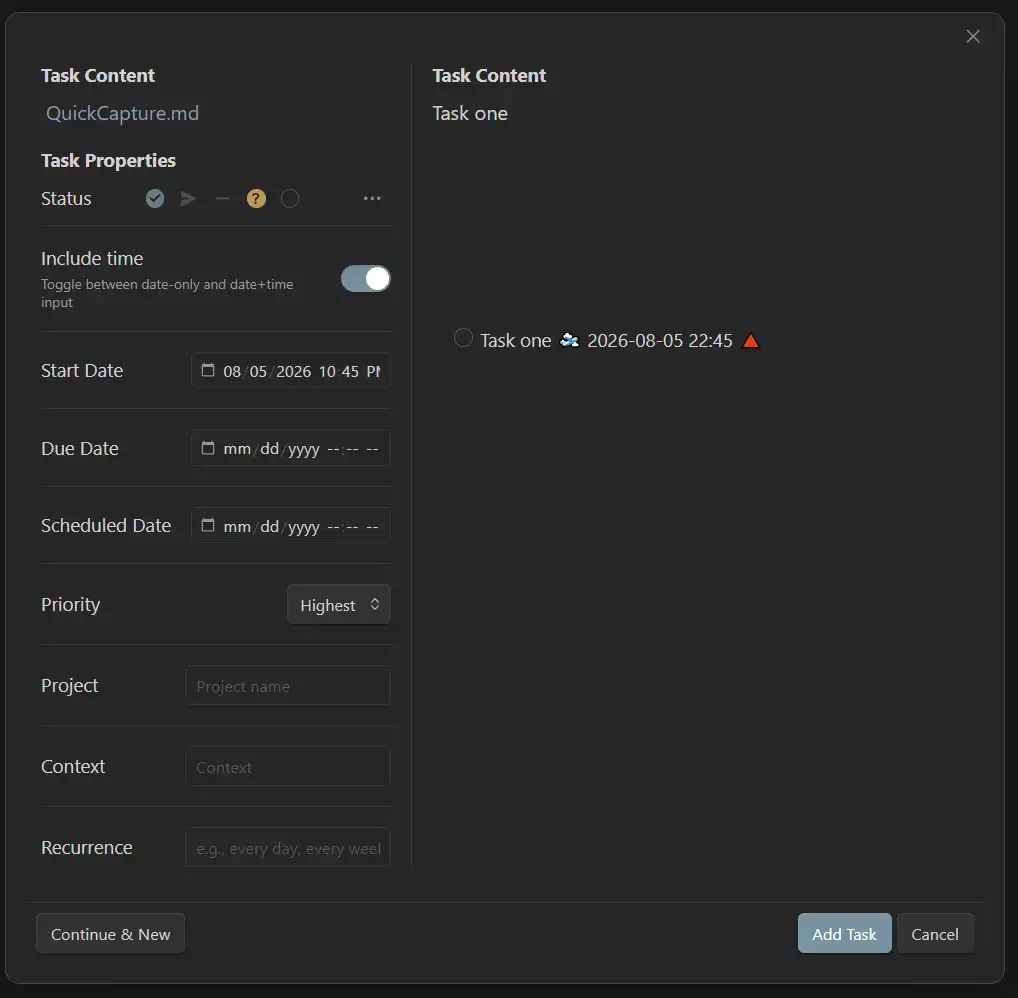
实际上右下角还有一个打开capture panel的入口: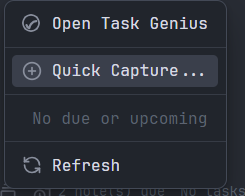
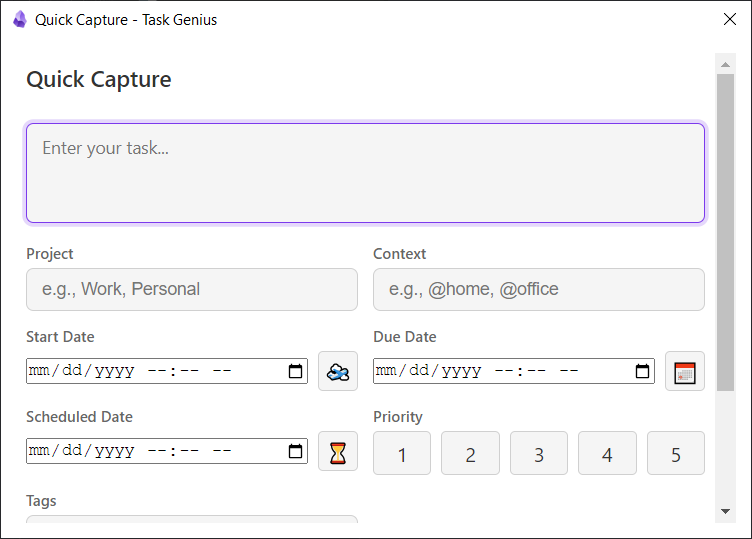
和 detail 的类似,可能是之前版本的detail,代码未清理干净
Configuration
Enable quick capture: Toggle this to enable Org-mode style quick capture panel.
选中与否好像没有区别???Target type: Choose whether to capture to a fixed file or daily note
Fixed file:- Target file:指定存储文档
Daily note:
- Target file:指定存储文档
Target heading: Optional heading to append content under(leave empty to append to file): content 会被添加到指定的heading下,如果文档中没有该heading,则会创建一个heading(二级)
例如:配置 Target heading 为 heading
task 1添加之后
## heading
- [ ] task 1
Placeholder text: Placeholder text to display in the capture panel:
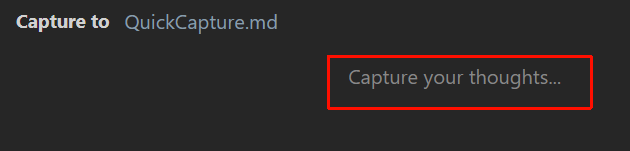
Append to file: How to add captured content to the target location
- Append
- Prepend
- Replace
- Auto-add task prefix: Automatically add task checkbox prefix to captured content
on:- Task prefix format: The prefix to add before captured content
-:列表- [ ]:待办
Minimal Mode
- Enable minimal mode: Enable simplified single-line quick capture with inline suggestions.
实际上没有发现启用前后有什么区别,至于这个simplified single-line 应该类似于bash 终端,通过文本输入创建capture。
on:- Suggest trigger character: Character to trigger the suggestion menu
问题
- 残存了一个task,删除不了

之前测试创建的task,原文件已经删除。无法删除该task