Visual Studio Code - Cpp
Visual Studio Code - Cpp
最开始一直使用Visual Studio 2016 作为IDE,接触Qt 后 就一直用Qt Creator 。虽久闻VS code 大名,也下载了VS code,但一直没有去了解、使用。为了顺应时代的潮流,同时也学习、体验VS Code 的优点,开启VS Code 之旅。
Prerequisites
安装 C/C++ extension for VS Code 插件
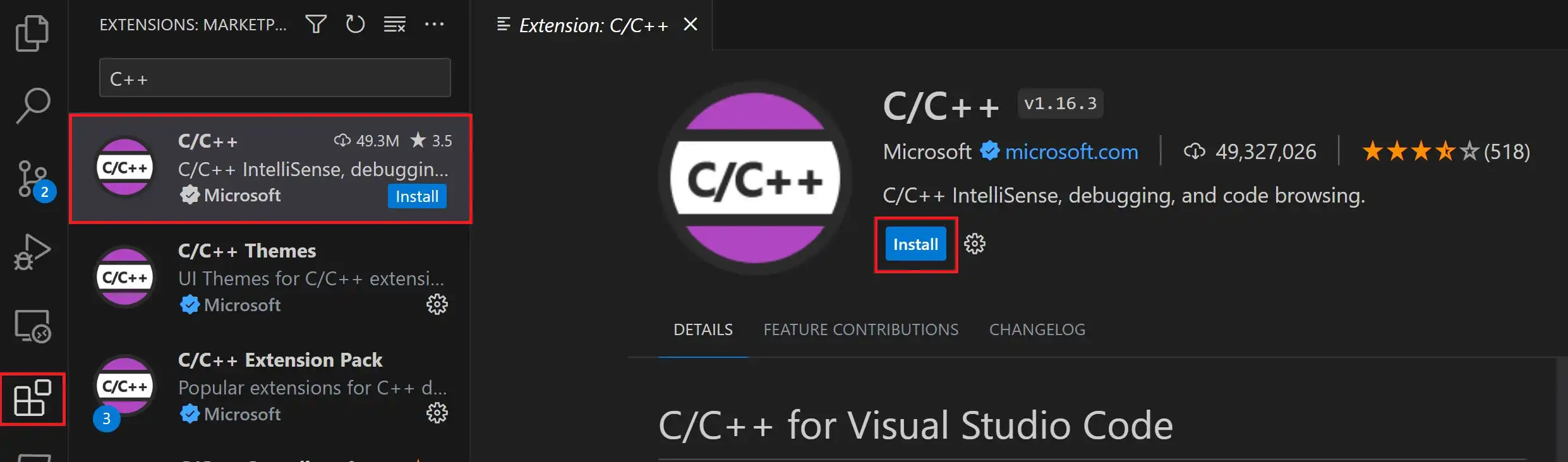
安装 MSYS2
关于 MSYS2
MSYS2
相关信息
MSYS2 is a collection of tools and libraries providing you with an easy-to-use environment for building, installing and running native Windows software.
- collection of tools:提供了一系列的工具包括 version control systems,tar。。。
- easy-to-use environment for 。。。
- installing:一个包管理器-Pacman,可以用来安装GCC、Clang 等软件或编译器
- building:使用GCC 构建 native windows software
- running:运行安装、编译的程序
关于native Windows software
使用WIndows 系统提供的API,没有经过中间层,不需要转换,(没有其他依赖)可以在任意windows系统上直接运行
- 安装 MinGW-w64 toolchain
安装完成后运行 MSYS2
输入安装命令:
pacman -S --needed base-devel mingw-w64-ucrt-x86_64-toolchain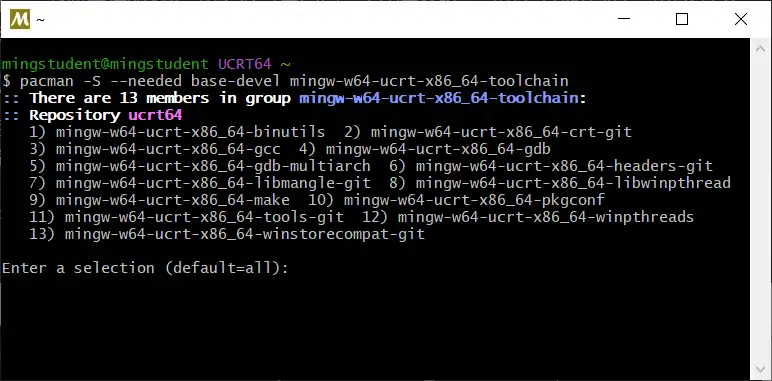
输入回车安装toolchain下所有packages
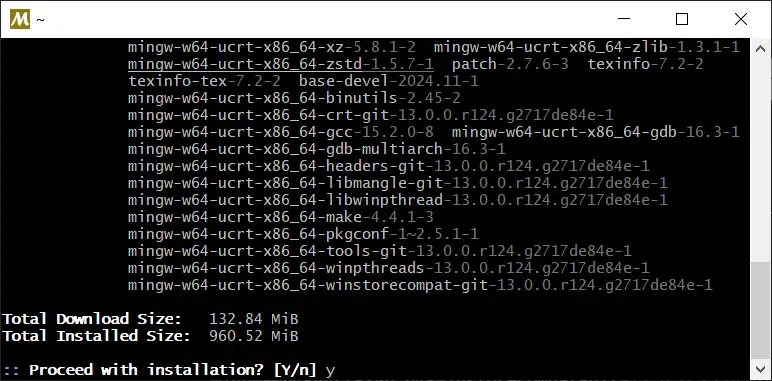
输入y 继续安装
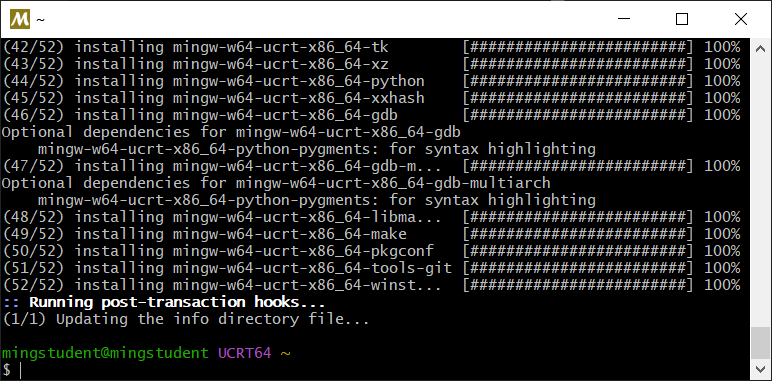
安装完成
关于MinGW-w64
全称:Minimalist GNU for Windows 64-bit
现代版本的,可以在windows上运行的GNU 工具链,可以编译64位软件。
- 添加 environment variables
在底部搜索栏中搜索环境变量
找到变量 Path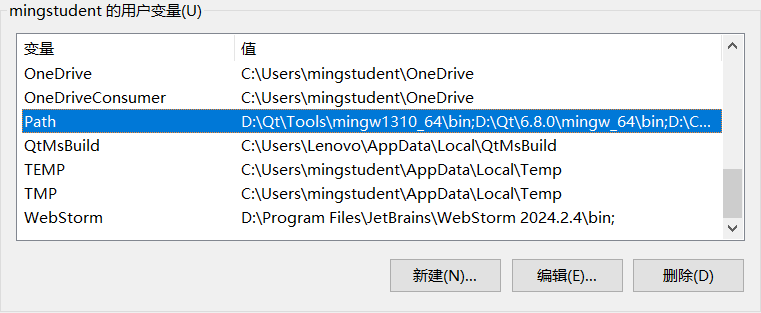
选中path点击编辑
找到MSYS2中GUN 工具的安装位置,默认安装路径为:C:\msys64\ucrt64\bin,复制该路径。
在环境变量边界界面点击新建,把上面的路径粘贴到编辑框内,回车确认。
把该变量值移动到顶部
点击确认所有设置窗口,更新变量值
- 验证:查看版本
打开:
输入命令:
$ g++ -v
Using built-in specs.
COLLECT_GCC=C:\msys64\ucrt64\bin\g++.exe
...

$ gcc -v
$ gdb -v
Hello World
- 创建项目目录
mingstudent@mingstudent MINGW64 /d/Project/VSCodeProjects
$ mkdir helloworld

mingstudent@mingstudent MINGW64 /d/Project/VSCodeProjects
$ cd helloworld/

mingstudent@mingstudent MINGW64 /d/Project/VSCodeProjects/helloworld
$ code .| 行号 | 功能 | 说明 |
|---|---|---|
| 2 | 创建目录 | |
| 5 | 进入到目录下 | |
| 8 | 用vscode 打开当前目录,会询问是否信任,选择Yes, I trust the authors |
- 创建main.cpp
点击左侧第一个按钮创建helloworld.cpp
输入并保存代码
#include <iostream>
#include <vector>
#include <string>

using namespace std;

int main()
{
    vector<string> msg {"Hello", "C++", "World", "from", "VS Code", "and the C++ extension!"};

    for (const string& word : msg)
    {
        cout << word << " ";
    }
    cout << endl;
}- IntelliSense
略 - 运行
左上角三角按钮,下拉选择Run C/C++ File
选择编译器
效果: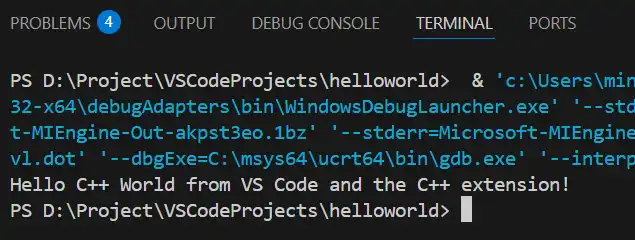
在TERMINAL 中打印了 “Hello C++。。。”
关于头文件报错
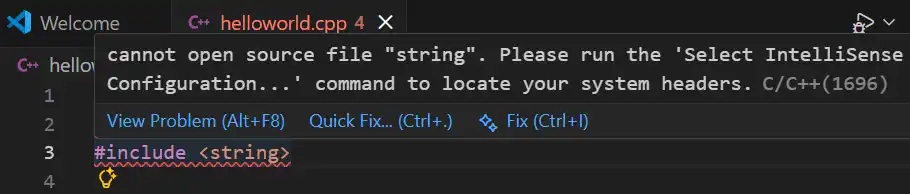
引入头文件报错,提示输入命令定位系统头文件
按提示设置compiler
按照提示输入命令:
选择g++作为 compiler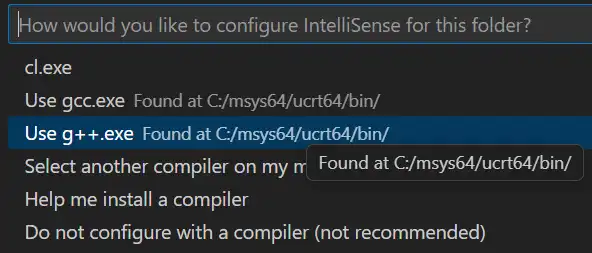
但是没有效果,仍然会继续报错,这里可能是因为没有项目配置文件。
设置 Compiler path
参考:Configure C/C++ IntelliSense Option2
打开 c_cpp_properties.json 的UI 配置界面
修改编译器路径
修改 IntelliSense mode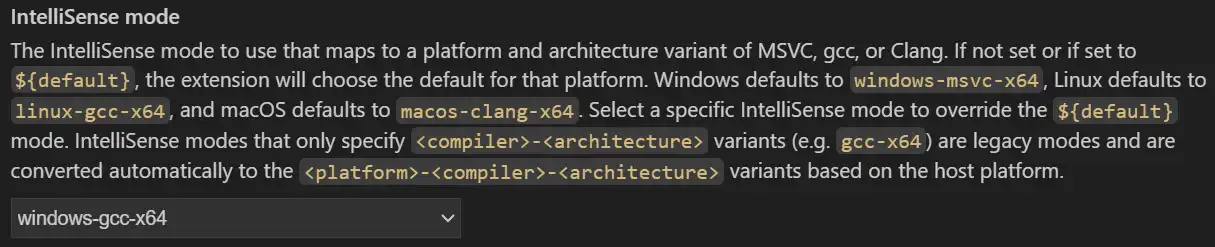
无效
手动配置路径
- 查看include <> 的搜索路径
C:/msys64/ucrt64/bin/g++.exe -v -E -x c++ -| 参数 | 含义 |
|---|---|
| -v | 输出详细信息,包含头文件搜索路径、版本信息。。。 |
| -E | 只进行预处理 |
| -x c++ | 指定编程语言为C++ |
| - | 从标准输入读取源代码 |
输出:
Using built-in specs.
COLLECT_GCC=C:\msys64\ucrt64\bin\g++.exe
Target: x86_64-w64-mingw32
Configured with: ../gcc-15.2.0/configure --prefix=/ucrt64 --with-local-prefix=/u
...
gcc version 15.2.0 (Rev8, Built by MSYS2 project)
...
#include "..." search starts here:
#include <...> search starts here:
 C:/msys64/ucrt64/bin/../lib/gcc/x86_64-w64-mingw32/15.2.0/../../../../include/c++/15.2.0
 C:/msys64/ucrt64/bin/../lib/gcc/x86_64-w64-mingw32/15.2.0/../../../../include/c++/15.2.0/x86_64-w64-mingw32
 C:/msys64/ucrt64/bin/../lib/gcc/x86_64-w64-mingw32/15.2.0/../../../../include/c++/15.2.0/backward
 C:/msys64/ucrt64/bin/../lib/gcc/x86_64-w64-mingw32/15.2.0/include
 C:/msys64/ucrt64/bin/../lib/gcc/x86_64-w64-mingw32/15.2.0/../../../../include
 C:/msys64/ucrt64/bin/../lib/gcc/x86_64-w64-mingw32/15.2.0/include-fixed
End of search list.- 将search的目录拷贝到UI配置中的 Include path下

- 效果:
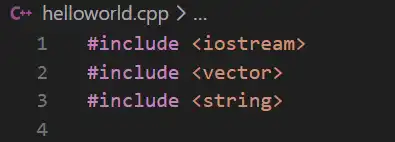
报错消失:找到了该头文件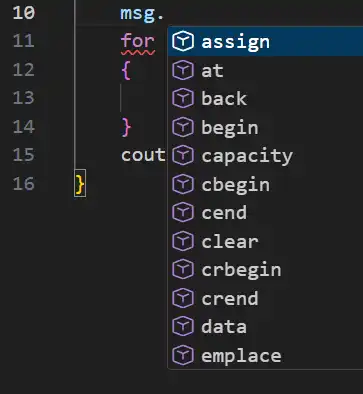
能够进行代码提示
手动配置虽然能解决问题,但是感觉很不“智能”,让我觉得很别扭,很难受,和所谓的“智能编辑、AI编程”显得格格不入。
C/C++ Extension 设置
配置路径:Extensions -》 Settings
-》Default:Compiler Path
对应的配置json文件
    "C_Cpp.default.compilerPath": "C:/msys64/ucrt64/bin/g++.exe",
    "C_Cpp.default.cppStandard": "c++17",
    "C_Cpp.default.cStandard": "c17",
    "C_Cpp.default.includePath": [
        " C:/msys64/ucrt64/bin/../lib/gcc/x86_64-w64-mingw32/15.2.0/../../../../include/c++/15.2.0",
	//...
    ],
然后我想让在Extension 中配置的compilerPath、standard 等参数应用到当前的工作配置,或者新生成的工作配置中。
通过设置为
            "includePath": [
                "${default}"
            ],
让当前配置继承User 设置
但是仍然报错
使用以下命令查看诊断信息:
>C/C++: Log Diagnostics输出:
   Compiler Path: C:\msys64\ucrt64\bin\g++.exe
    Include paths:
        include: D:\Project\VSCodeProjects\hello\ c:\msys64\ucrt64\include\c++\15.2.0
		//...
        system include: D:\linux\include
... 不知道这个system include 为什么是 D:\linux\include
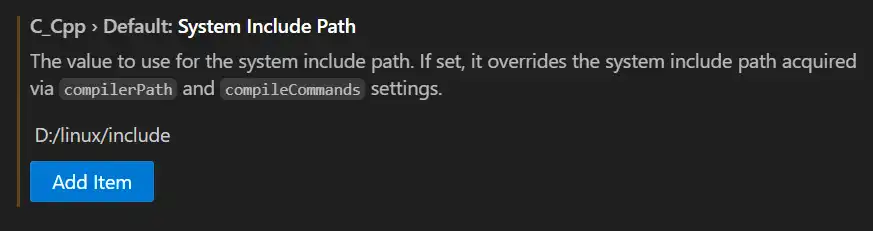
哈哈,前面挖坑,后面埋。应该是之前配置的。
这个设置会覆盖根据compilerPath 检测出的include path。把这个路径删除掉,使用compilerPath settings.
终于搞定了,折腾了半天。“在再试一次,不行就算了”,即将放弃之前取得了收获。
不过我在网上找了半天,反复问AI都没有提到 system include path
难道是我问的不对?
回顾解决过程:
| 序号 | 问题内容 | 问题 | 获取到的信息 |
|---|---|---|---|
| 1 | 直接报告的错误信息提问解决办法 | vscode 报错:cannot open source file。。。 | |
| 2 | 增加了具体环境 | windows 下使用 MinGW-w64 编译 报系统头文件错误 | |
| 3 | 针对 IntelliSense 以及具体的解决办法 | 1. Edit Configurations 添加头文件;2. 修改C/C++Extension Settings | |
| 4 | 在vscode 中让AI 帮助解决问题 | 最关键的点:Log Diagnostics 看到了 system include 配置的路径错误 |
小结:遇到配置问题时可以先通过关键字搜索相关配置选项,这里可以搜索include、path 。。。;如何重置所有配置;有没有调试、诊断信息,检查所有配置项